Introduction
Recently, I encountered an issue on a Windows 11 Entra ID joined device where both Microsoft Store and Windows App (Windows 365 client) would not open. Attempts to uninstall and reinstall the Windows App resulted in the following error:
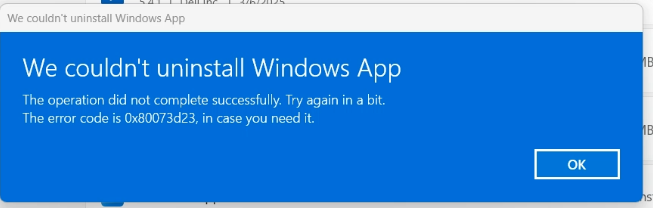
This issue prevented users from connecting to their Windows 365 Cloud PC and caused significant disruption.
After extensive troubleshooting, the root cause turned out to be a corrupted Entra ID user profile. This article documents the troubleshooting process and final resolution.
Symptoms
The affected user experienced the following issues:
- Microsoft Store would not open.
- Windows App would not launch.
- Windows 365 Cloud PC could not be accessed.
- Uninstalling Windows App failed with error 0x80073D23.
- Store apps appeared installed but were non-functional.
Initial Troubleshooting Steps
The following common fixes were attempted:
Reset Microsoft Store Cache
wsreset.exe
Re-register Microsoft Store
Get-AppxPackage -allusers Microsoft.WindowsStore | Foreach {
Add-AppxPackage -DisableDevelopmentMode -Register "$($_.InstallLocation)\AppxManifest.xml"
}
Repair Windows Image
DISM /Online /Cleanup-Image /RestoreHealth
Run System File Checker
sfc /scannow
Despite completing all repair operations successfully, the issue persisted.
Investigating Installed Packages
To verify whether Windows App was installed, PowerShell commands were used:
Get-AppxPackage *WindowsApp*
The output showed only Windows App Runtime packages and framework dependencies.
Further investigation revealed:
Get-AppxPackage -AllUsers | Where-Object {
$_.Name -like "*windows*" -or $_.Name -like "*rdclient*"
}
The output confirmed that both:
- Microsoft.WindowsStore
- MicrosoftCorporationII.Windows365
were installed correctly.
This indicated the problem was not caused by missing packages.
Key Discovery
A temporary local administrator account was created:
net user TestAdmin TempPassword123! /add
net localgroup Administrators TestAdmin /add
After logging into the new account:
- Microsoft Store opened normally.
- Windows App launched successfully.
- Windows 365 connectivity worked.
This immediately confirmed that:
- Windows was healthy.
- AppX infrastructure was functional.
- The problem was isolated to the user’s profile.
Special Profile Deployment Error
Attempting to launch Microsoft Store produced the following error:
The deployment operation was blocked because Special profile deployment is not allowed.
This error is a strong indicator of user profile corruption affecting AppX package deployment.
Registry Investigation
The following registry location was examined:
HKEY_LOCAL_MACHINE\SOFTWARE\Microsoft\Windows NT\CurrentVersion\ProfileList
A duplicate SID was discovered:
S-1-12-1-xxxxxxxxxxxxxxxx
S-1-12-1-xxxxxxxxxxxxxxxx.bak
The entries showed:
Active Profile
ProfileImagePath = C:\Users\TEMP.CORP.000
Backup Profile
ProfileImagePath = C:\Users\saqirure
Windows was loading a temporary profile instead of the user’s actual profile.
Registry Repair Attempt
The following steps were performed:
- Rename the active SID key to:
SID.temp
- Remove the
.bakextension from the original profile SID. - Set:
State = 0
- Reboot the system.
Although the profile loaded correctly afterward, Microsoft Store and Windows App issues remained.
Root Cause
The root cause was determined to be:
Corrupted Entra ID User Profile
The AppX deployment database associated with the user profile had become corrupted.
Since Store applications worked under a new profile, Windows itself was not the source of the issue.
Final Resolution
Because the device was Entra ID joined and the user had no local data, the most reliable solution was to recreate the profile.
Steps
- Log in using a local administrator account.
- Rename the affected profile folder:
C:\Users\saqirure
to:
C:\Users\saqirure.old
- Remove the old profile from User Profiles settings if possible.
- Restart the device.
- Sign back in using the Entra ID account.
- Allow Windows to create a fresh profile.
After the profile was recreated:
- Microsoft Store opened successfully.
- Windows App launched normally.
- Windows 365 Cloud PC connectivity was restored.
- App deployment errors disappeared.
Lessons Learned
When troubleshooting Microsoft Store or Windows App failures:
- Verify whether the issue affects all users or only one profile.
- Create a temporary administrator account for testing.
- Check for
.bakentries under ProfileList. - Investigate “Special profile deployment is not allowed” errors.
- On Entra ID joined devices, profile recreation is often faster than extensive AppX repair attempts.
Conclusion
Error 0x80073D23 combined with Microsoft Store and Windows App failures can sometimes point to a much deeper issue than application corruption. If the problem is isolated to a single Entra ID profile and alternate accounts work normally, focus your efforts on repairing or recreating the user profile rather than repeatedly reinstalling Store applications.
In many cases, rebuilding the profile is the quickest and most reliable path to resolution.
!!! THANKS FOR READING !!!
Regards,
HARISH KUMAR
Knowledge is not a finite resource to hoard; it’s a boundless treasure that grows when shared