If you are new to Microsoft Intune or struggling to deploy applications, this guide will help you understand everything from scratch in very simple language.
We will cover:
- How to prepare files
- Convert app to Intune format
- Test silent installation
- Find install/uninstall commands
- Configure in Intune
📁 Step 1: Create Source and Output Folder
First, create a clean folder structure. This is very important.
C:\Temp\IntuneApps\ABC\
│
├── Source\
│   └── Application.msi or .exe
│
└── Output\
For example:
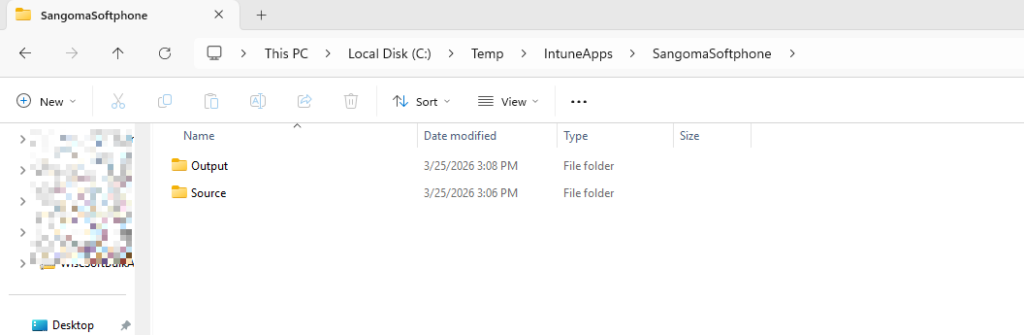
👉 Source Folder = Where your app file is stored
👉 Output Folder = Where Intune package will be created
⬇️ Step 2: Download Intune Utility Tool
Download:
👉 Microsoft Win32 Content Prep Tool (IntuneWinAppUtil.exe)
This tool is required because Intune cannot directly use .exe or .msi files.
It converts them into .intunewin format
⚙️ Step 3: Convert App to Intune Format
Open Command Prompt (Run as Administrator)
Go to tool location:
cd C:\Temp\IntuneApps\ToolRun:
IntuneWinAppUtil.exeNow enter:
- Source folder:
C:\Temp\IntuneApps\ABC\Source- Setup file:
Application.msi or .exe- Output folder:
C:\Temp\IntuneApps\ABC\Output👉 Output will be:
Application.intunewinFor example:

🧪 Step 4: Test Silent Installation (VERY IMPORTANT)
Before uploading to Intune, always test silent install.
For MSI:
msiexec /i "Application.msi" ALLUSERS=1 /qn /norestart/i→ Install/qn→ Silent (no popup)/norestart→ No rebootALLUSERS=1→ Install for all users
How to Check if Installation Worked
After running command, check:
Program Files
C:\Program Files\Control Panel
appwiz.cplApp should be visible
Step 5: Find Silent Install Parameters
If you don’t know silent command:
Try:
Application.exe /?OR:
Application.exe /silent
Application.exe /S
Application.exe /quiet
Every application is different — you must test manually
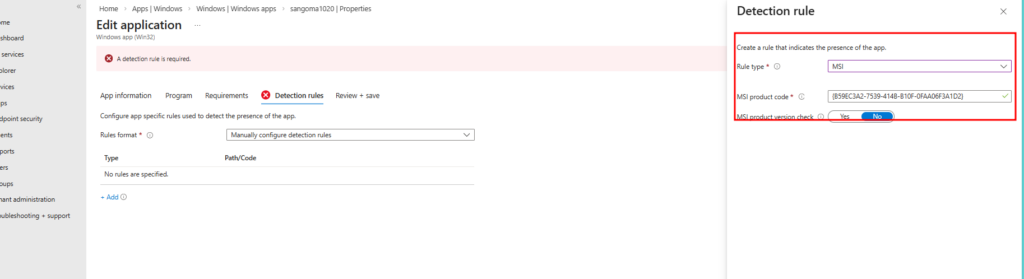
Step 6: Find Product Code (IMPORTANT)
Product Code is required for uninstall command and detection.
Method (PowerShell):
Get-ItemProperty HKLM:\Software\Microsoft\Windows\CurrentVersion\Uninstall\* |
Where-Object {$_.DisplayName -like "*AppName*"} |
Select DisplayName, UninstallString
Output example:
MsiExec.exe /I{GUID}👉 Extract this:
{GUID}That is your Product Code
For your reference:

Step 7: Upload App to Intune and configure
Follow the steps showing in screenshots:
Intune Admin Center → Apps → Windows → Add
Select:
👉 Windows app (Win32) ()
Upload your .intunewin file


Important Tips (Must Know)
✔ Always test silent install before Intune
✔ Always use FULL PATH in command
✔ Prefer MSI over EXE
✔ Use SYSTEM context for machine apps
✔ Use MSI detection for accuracy
Conclusion
Deploying apps using Intune may look complex, but if you follow these steps:
- Prepare folders
- Convert to
.intunewin - Test silent install
- Find product code
- Configure Intune
You can deploy any application successfully.
🚀 Bonus Tip
If your app installs in:
AppData\Local👉 It is a user-based install
👉 Use User context deployment
!!! THANKS FOR READING !!!
Regards,
HARISH KUMAR
Knowledge is not a finite resource to hoard; it’s a boundless treasure that grows when shared