Introduction
Recently, we encountered an interesting issue where users could access cPanel without any problems from their local machines, but the same URL failed when accessed from a Windows 365 Cloud PC. The browser displayed errors such as ERR_CONNECTION_TIMED_OUT and This site can’t be reached, even though the website itself was online and accessible from other environments.
This article explains the troubleshooting process, findings, and resolution steps that can help IT administrators facing similar connectivity issues.
The Problem
Users attempted to access a website from Cloudpc and getting error:
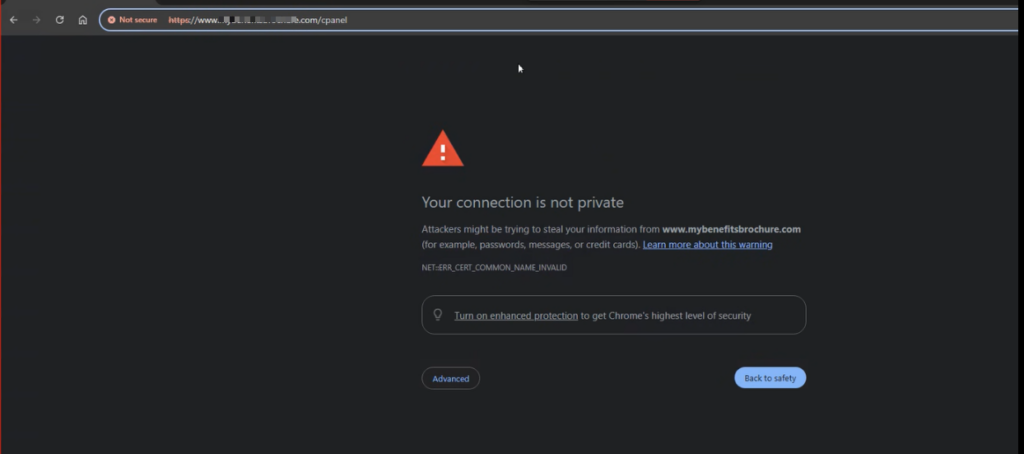
from a Windows 365 Cloud PC and received timeout errors. However, the same URL worked successfully from their local workstation.
Initial symptoms included:
- ERR_CONNECTION_TIMED_OUT
- Browser connection failures in Chrome and Edge
- Successful access from local devices
- Failed access only from Azure-hosted Cloud PCs
Initial Investigation
The first step was to verify network connectivity from the Cloud PC.
Using PowerShell:
Test-NetConnection anywebsite.com -Port 2083
The results showed that DNS resolution was working, but TCP connectivity to port 2083 was failing.
This helped narrow the issue to a network path, routing, firewall, or hosting-side restriction rather than a browser problem.
Verifying Intune and Azure Firewall Policies
Since the environment was managed through Microsoft Intune and Azure, several areas were reviewed:
Windows Defender Firewall
An outbound firewall rule was created to allow TCP port 2083.
Azure Firewall
Azure Firewall policies were reviewed and an existing rule allowing traffic to the hosting environment on port 2083 was confirmed.
Microsoft Defender for Endpoint
Network Protection and Web Protection policies were examined to ensure they were not blocking traffic.
Despite these checks, the issue persisted.
Direct IP Testing
The breakthrough came when testing connectivity directly against the hosting server IP.
curl.exe -vk https://198.54.114.166:2083
The connection succeeded and returned the cPanel login page with an HTTP 200 response.
This confirmed:
- Azure Firewall was functioning correctly
- Port 2083 was reachable
- The hosting server was responding
- The issue was not related to Intune or Azure network restrictions
DNS and Routing Analysis
Further investigation revealed that the hostname:
anywebsite.com
resolved to:
198.54.115.177
However, the successful direct connection was made to:
198.54.114.166
This suggested one of the following:
- Different backend servers in a hosting cluster
- DNS-based load balancing
- Geo-routing differences
- Hosting-side firewall restrictions affecting Azure traffic
Since local users could access the service while Azure-hosted Cloud PCs could not, the evidence pointed toward a hosting-side routing or firewall issue rather than a Microsoft cloud issue.
Temporary Workaround
To restore user access immediately, a hosts file entry was added on the Cloud PC:
198.54.114.166 anywebsite.com
After flushing DNS:
ipconfig /flushdns
users were able to access cPanel successfully.
Long-Term Resolution
The hosting provider should investigate:
- DNS records associated with the cPanel hostname
- Backend server health
- Load-balancer configuration
- Firewall rules affecting Azure IP ranges
- Routing differences between hosting nodes
Providing the hosting support team with connectivity test results, DNS resolution outputs, and successful direct-IP connection evidence significantly speeds up troubleshooting.
Key Takeaways
When a service works from local devices but fails from Windows 365 Cloud PCs:
- Verify DNS resolution.
- Test connectivity using Test-NetConnection.
- Confirm Azure Firewall and Intune policies.
- Test direct IP connectivity.
- Compare DNS results across environments.
- Investigate hosting-side firewalls and load-balancing configurations.
In many cases, what appears to be a Microsoft networking issue can actually be caused by DNS routing or hosting-provider infrastructure differences.
By following a structured troubleshooting approach, administrators can quickly isolate the root cause and restore access for end users.