Introduction
A common Microsoft 365 issue occurs when users are migrated from one UPN/email domain to another while existing SharePoint external-sharing policies still reference the old domain.
For example:
Old UPN: user@DomainA.com
New UPN: user@DomainB.com
The user may be able to authenticate successfully, exist as a SharePoint guest, and have permissions on the site, but SharePoint can still display:
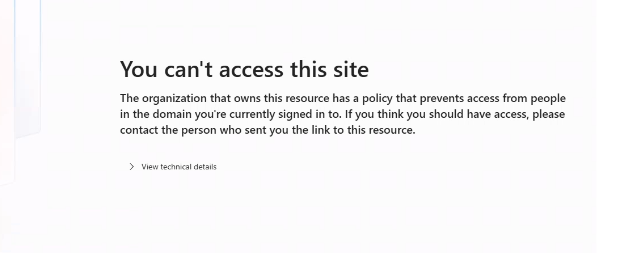
This article explains how to troubleshoot this scenario and identify the actual cause.
The Scenario
Consider this example:
- A Resource Tenant hosts the SharePoint Online environment.
- A Partner Tenant uses Microsoft Entra B2B guest accounts to access SharePoint.
- Users from the Partner Tenant previously used
@DomainA.com. - Users were recently migrated to
@DomainB.com. - Existing users continue to access SharePoint as guest users.
- A user is granted access to a SharePoint site.
- The user successfully authenticates using the new
@DomainB.comaccount. - Entra sign-in logs show Status: Success.
- SharePoint still denies access.
At first, this can appear to be an MFA, Conditional Access, or guest-account issue.
In this case, the actual problem was a SharePoint site-level domain restriction.
Symptoms
The user receives:
You can’t access this site
followed by:
The organization that owns this resource has a policy that prevents access from people in the domain you’re currently signed in to.
The user can:
- Sign in using the new UPN.
- Complete authentication.
- Authenticate through the Partner Tenant.
- Exist as a guest in the Resource Tenant.
- Have permissions on the SharePoint site.
- Show Status: Success in Entra sign-in logs.
However, SharePoint still denies access.
Step 1 — Check Organization-Level SharePoint Sharing
Go to:
SharePoint Admin Center → Policies → Sharing
Verify that external sharing is enabled, such as:
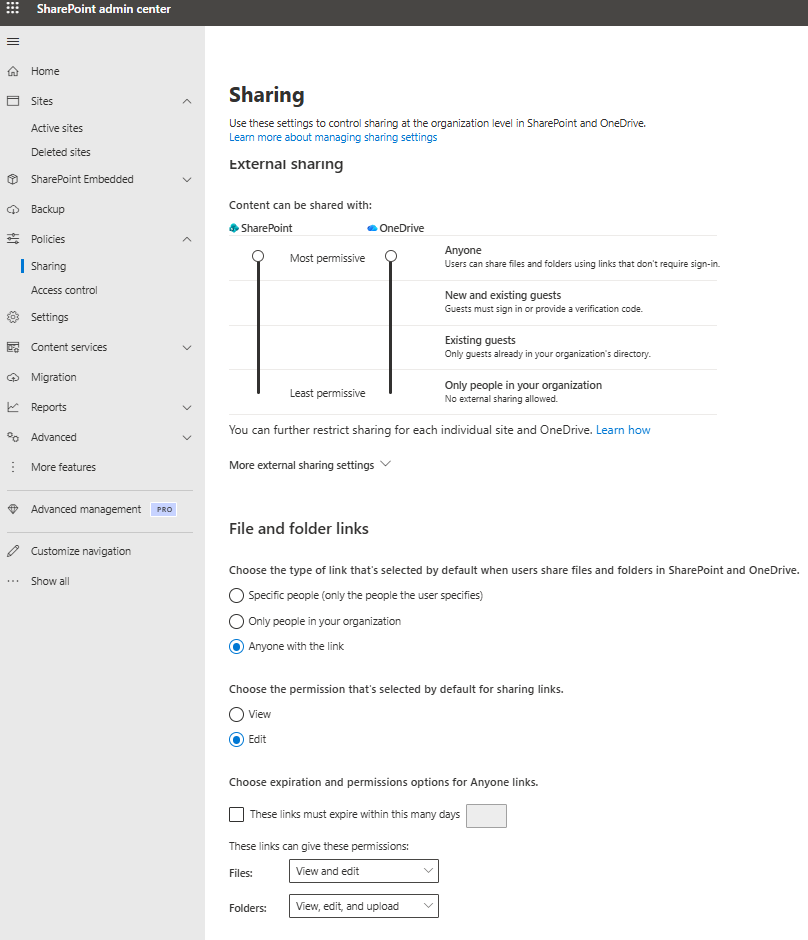
New and existing guests
This confirms that guest collaboration is permitted at the organization level.
However, this setting alone does not guarantee that every SharePoint site allows every external domain.
Step 2 — Check the SharePoint Site
Go to:
SharePoint Admin Center → Active sites → Select Site → Settings → More sharing settings
Verify:
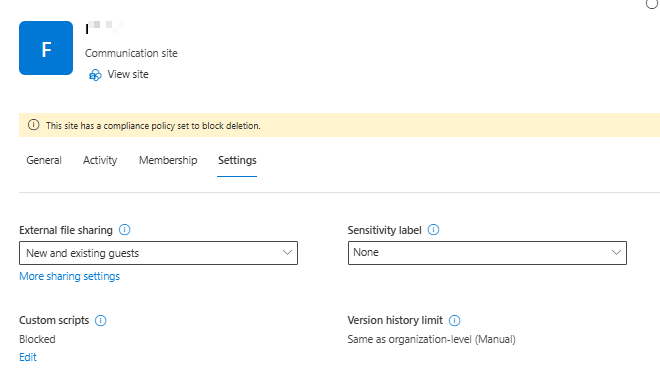
External sharing: New and existing guests
Then check:
Advanced settings for external sharing
Look for:
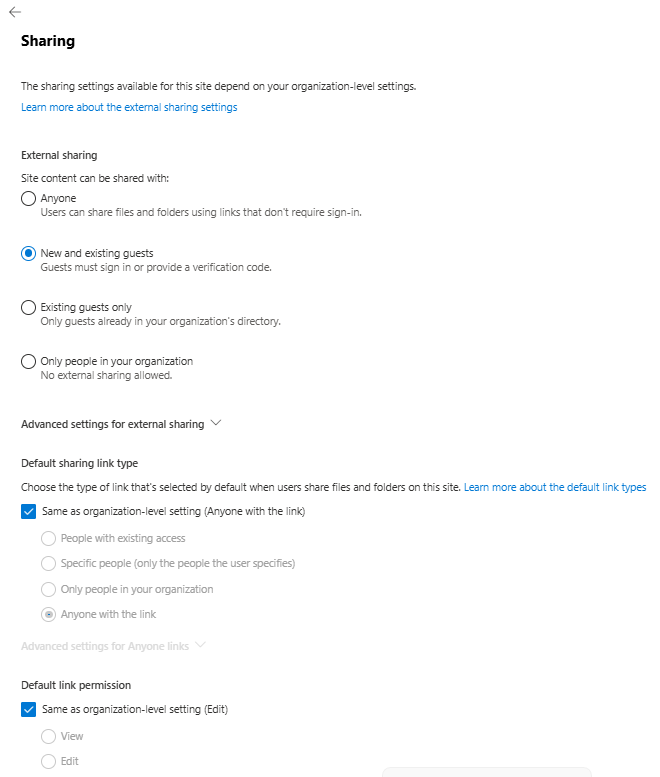
Limit external sharing by domain
A SharePoint site can have its own domain allow list even when the organization-level configuration does not have a domain restriction.
Step 3 — Check the Organization Configuration Using PowerShell
Connect to SharePoint Online:
Connect-SPOService -Url https://<tenant>-admin.sharepoint.com
Run:
Get-SPOTenant |
Select-Object SharingDomainRestrictionMode,
              SharingAllowedDomainList,
              SharingBlockedDomainList
For example:
SharingDomainRestrictionMode : None
SharingAllowedDomainList     :
SharingBlockedDomainList     :
This indicates that the organization does not have a global domain restriction.
However, individual SharePoint sites can still have their own restrictions.
Step 4 — Check the Specific SharePoint Site
Run:
Get-SPOSite -Identity "https://<tenant>.sharepoint.com/sites/<SiteName>" |
Select-Object SharingDomainRestrictionMode,
              SharingAllowedDomainList,
              SharingBlockedDomainList
In this scenario, the result was:
SharingDomainRestrictionMode : AllowList
SharingAllowedDomainList     : DomainA.com
However, the user was now authenticating as:
user@DomainB.com
Therefore:
DomainA.com → Allowed
DomainB.com → Not Allowed
The user could authenticate successfully, but SharePoint authorization failed.
Why Entra Sign-In Shows “Success”
This is an important distinction when troubleshooting Microsoft 365 B2B access.
An Entra sign-in event showing:
Status: Success
means the user’s identity was successfully authenticated.
It does not necessarily mean that the user has been authorized to access the requested SharePoint resource.
The simplified flow is:
External User
      |
      v
Partner Tenant
      |
      | Authentication
      v
Resource Tenant
      |
      | Security & Sharing Policies
      v
SharePoint Online
      |
      v
Access Granted / Denied
In this scenario, authentication succeeded, but the SharePoint site-level domain restriction denied access.
What About MFA and Conditional Access?
During troubleshooting, MFA, Conditional Access, and Cross-Tenant Access should also be reviewed.
For B2B collaboration, the Resource Tenant can configure trust for:
- Multifactor authentication
- Compliant devices
- Microsoft Entra hybrid joined devices
These settings are available under:
Entra Admin Center → External Identities → Cross-tenant access settings → Organizational settings → Partner Tenant → Inbound access → Trust settings
If these settings are correctly configured and the user is successfully authenticating, avoid disabling MFA or Conditional Access simply to resolve the SharePoint error.
The SharePoint domain restriction should be investigated first when the error specifically references the user’s domain.
Cross-Tenant Access
Also verify:
Entra Admin Center → External Identities → Cross-tenant access settings
Then:
Organizational settings → Partner Tenant → Inbound access
Verify that:
B2B collaboration → Allow access
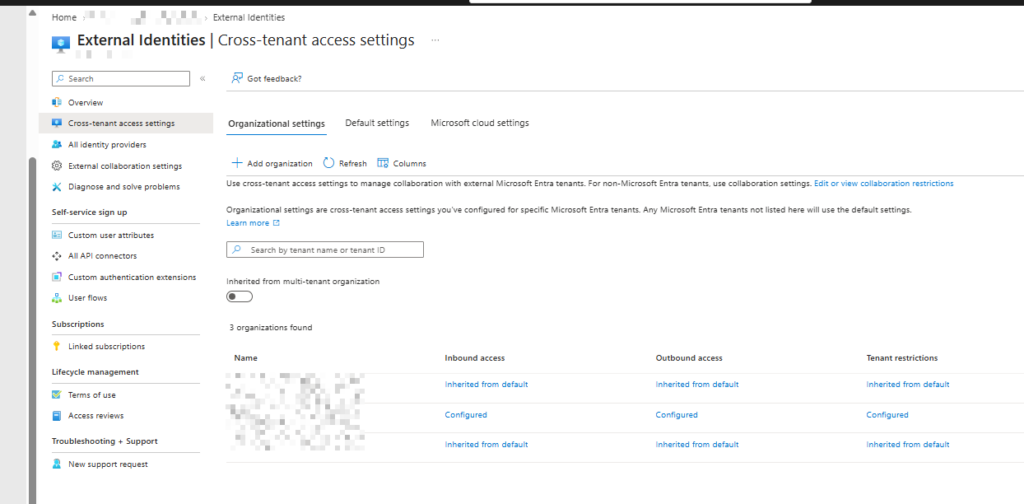
is configured appropriately.
Cross-tenant access controls B2B collaboration and can also establish trust for MFA and device claims.
However, correct Cross-Tenant Access configuration does not override a SharePoint site-level domain restriction.
Root Cause
The final configuration looked like this:
Organization Level
SharingDomainRestrictionMode : None
No organization-wide domain restriction existed.
SharePoint Site Level
SharingDomainRestrictionMode : AllowList
SharingAllowedDomainList     : DomainA.com
User’s Current Identity
user@DomainB.com
SharePoint evaluated:
Is DomainB.com included in the site's allowed-domain list?
Result:
NO
Therefore:
Authentication       → SUCCESS
Guest account        → CORRECT
SharePoint permission → CORRECT
Cross-tenant access  → CORRECT
Domain restriction   → BLOCKED
The Correct Fix
If both domains need to remain supported during the migration, add the new domain to the site’s allow list.
Set-SPOSite `
    -Identity "https://<tenant>.sharepoint.com/sites/<SiteName>" `
    -SharingDomainRestrictionMode AllowList `
    -SharingAllowedDomainList "DomainA.com DomainB.com"
Then verify:
Get-SPOSite `
    -Identity "https://<tenant>.sharepoint.com/sites/<SiteName>" |
Select-Object SharingDomainRestrictionMode,
              SharingAllowedDomainList,
              SharingBlockedDomainList
The expected configuration is:
SharingDomainRestrictionMode : AllowList
SharingAllowedDomainList     : DomainA.com DomainB.com
Microsoft documents SharePoint domain restrictions and the use of Set-SPOSite for configuring allowed and blocked domains. SharePoint domain restrictions documentation
Should the New Domain Be Allowed Across SharePoint?
If the two organizations have an ongoing business relationship and users from DomainB.com need regular SharePoint access, consider allowing the new domain across the SharePoint environment.
There are two approaches.
Option 1 — Organization-Wide Allow List
Use this approach when only approved external domains should be permitted.
For example:
DomainA.com
DomainB.com
This provides a controlled list of approved external domains.
Option 2 — Site-Level Restrictions
Keep the organization-level configuration unrestricted and manage allowed domains on individual sites.
This approach may be preferable when different sites have different external collaboration requirements.
Audit Other SharePoint Sites
After a UPN/domain migration, it is a good practice to identify other sites with custom domain restrictions.
Run:
Get-SPOSite -Limit All |
Select-Object Url,
              SharingDomainRestrictionMode,
              SharingAllowedDomainList,
              SharingBlockedDomainList |
Where-Object {
    $_.SharingDomainRestrictionMode -ne "None"
}
This can identify SharePoint sites that still have custom domain restrictions.
You can then determine whether sites are still configured for the old domain:
DomainA.com
and update them to support:
DomainB.com
where appropriate.
What Administrators Should Not Do
When faced with this error, avoid immediately:
- Deleting and recreating the guest
- Resetting the guest’s password
- Disabling MFA
- Disabling Conditional Access
- Removing the guest from the SharePoint site
- Recreating the SharePoint site
- Changing the organization’s entire external-sharing configuration
First identify which policy is actually denying access.
In this scenario, the guest account and authentication were working correctly. The problem was that the new domain was not included in the SharePoint site’s allowed-domain list.
Final Troubleshooting Flow
When a SharePoint guest receives:
“The organization that owns this resource has a policy that prevents access from people in the domain you’re currently signed in to.”
follow this sequence:
1. Verify guest exists
        ↓
2. Verify guest has SharePoint permissions
        ↓
3. Verify authentication succeeds
        ↓
4. Check SharePoint organization sharing
        ↓
5. Check SharePoint site sharing
        ↓
6. Check SharePoint domain restrictions
        ↓
7. Check Entra External Collaboration
        ↓
8. Check Cross-Tenant Access
        ↓
9. Check Conditional Access
        ↓
10. Check device/tenant restrictions
For a UPN/domain migration, SharePoint site-level domain restrictions should be one of the first checks.
Conclusion
A successful Microsoft Entra authentication does not necessarily mean SharePoint authorization will succeed.
When users are migrated from:
user@DomainA.com
to:
user@DomainB.com
existing SharePoint site-level domain restrictions may continue allowing only the old domain.
In this scenario:
Old domain:
DomainA.com

New domain:
DomainB.com
The SharePoint site was still configured to allow only DomainA.com.
The user successfully authenticated with DomainB.com, but SharePoint rejected the request because the new domain was not included in the site’s allow list.
The correct solution was to update the SharePoint domain allow list rather than modifying the guest account or weakening MFA/Conditional Access.
Key takeaway: When troubleshooting SharePoint guest access after a domain migration, always check the site’s SharingDomainRestrictionMode and SharingAllowedDomainList.
This simple check can save significant troubleshooting time when authentication appears to be working but SharePoint continues to deny access.
!!! THANKS FOR READING !!!
Regards,
HARISH KUMAR
Knowledge is not a finite resource to hoard; it’s a boundless treasure that grows when shared